
|
HPR/BPR Bluetooth Reader |
|
To configure an HPR or BPR reader in P5 to connect via Bluetooth, use the following steps:
1.Turn the reader on and make sure Bluetooth is enabled in the device settings
2.In P5, navigate to Configuration Tools > Peripheral Devices
3.Click New to create a new device
4.Give the device a Name (e.g. New HPR Bluetooth)
5.Select Reader (HPR/BPR Bluetooth) as the Device Type
6.Click Pick in the Bluetooth Device text box
7.Select your reader from the Select Bluetooth Device window
8.Select the Timestamp Format that matches the setting on the reader (continue below)

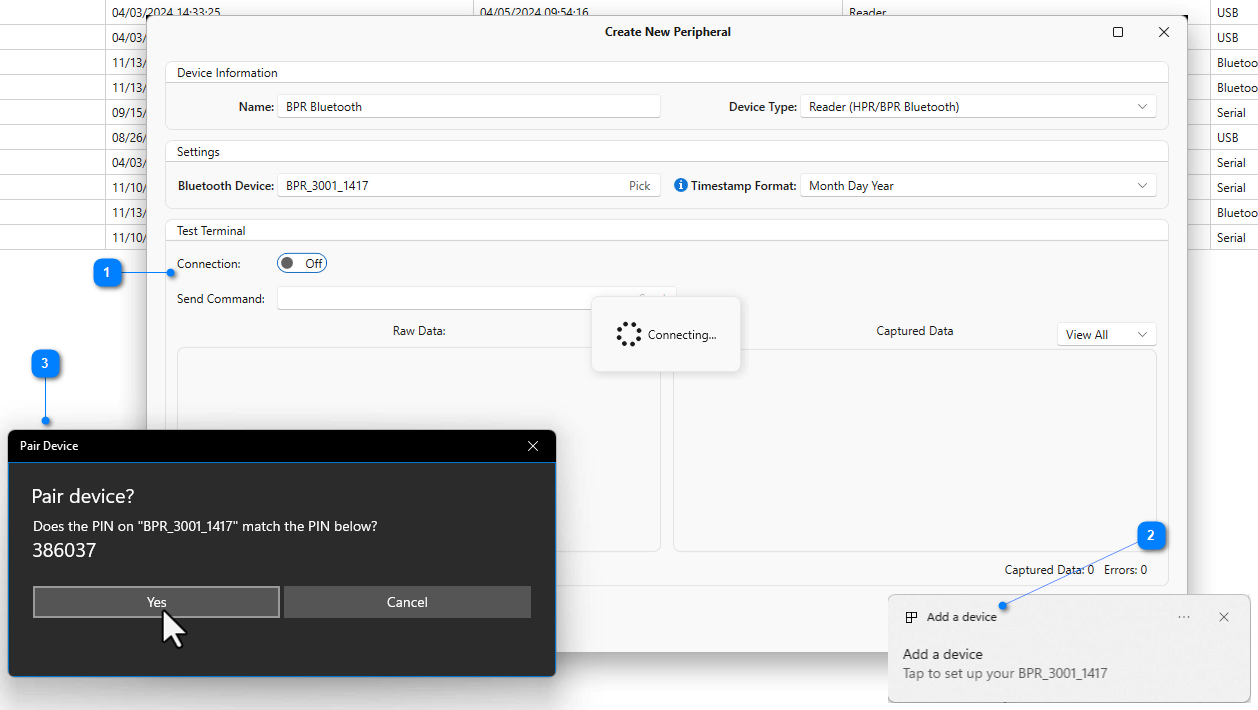
1.Turn the Connection to On in the Test Terminal
2.If the reader has not yet been paired with this computer, the Windows Add a Device notification will appear
3. If pairing a BPR 3001, make sure the PIN displayed on your computer matches the PIN displayed on the BPR screen and click Yes on the computer and Pair Device on the BPR. If pairing an HPR Lite or HPR Plus, enter the device PIN into the computer dialog box. The default PIN is 1234.
1.The Raw Data terminal will indicate the device is paired and connected.
2.Scan a tag to make sure is parses the timestamp correctly.
3.Click the Save button.
