
|
Managing Local Database Connections |
|
New in version 1.6.0, P5 supports multiple named local database files, making it easier to work on different projects. This feature was requested by users who need separate sets of Project Defined Fields for different projects.
Because Project Defined Fields are shared across a single P5 database, users previously had to manually back up and restore different databases to switch between project configurations. P5 now allows you to restore backups to uniquely named local databases, making it easy to create, identify, and switch between project-specific databases.
To get started, select the Utilities tile in the Manage section of the main P5 screen. Click Restore and choose the backup file you want to restore. The Restore Database window will open, allowing you to create a new database, assign it a name, and choose an accent color that will appear in the P5 title bar when connected to that database.
To create a new database:
1.In the Restore To field, select (create new database)
2.Enter a name in the New Database Name field. Click the information icon next to New Database Name to view the database naming requirements.
3.Select a color in the Connection Accent Color field.
Important: This is the only supported method for creating new user-named databases. Do not manually copy, rename, delete, or move P5 database files, as this may result in database issues.
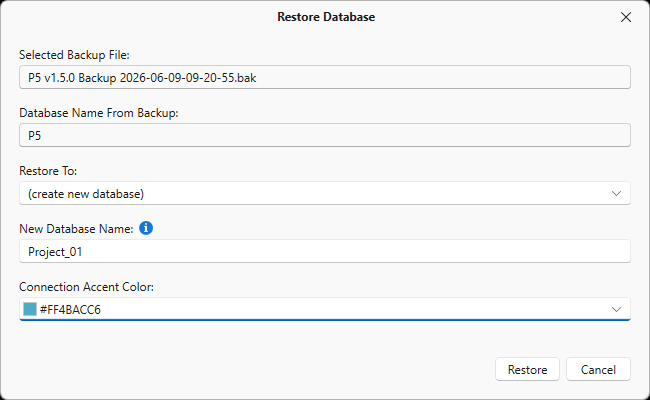
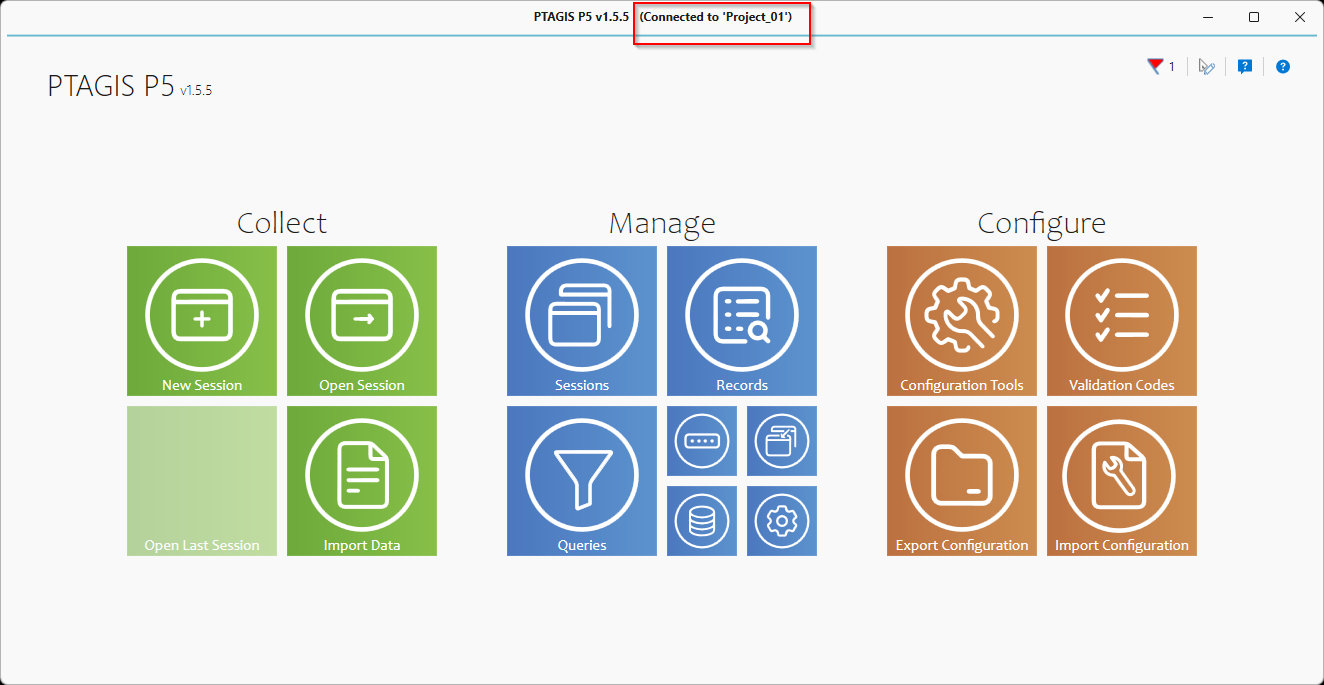
After clicking Restore, you will be asked to confirm the creation of the new database and prompted to restart P5. When P5 restarts, the database name and selected accent color will appear in the title bar, making it easy to identify the database you're connected to.
To switch between databases, open Utilities and click Change Database Connection. Select the desired database, click Continue, and then restart P5 to complete the connection change.
.png)