
|
Digitizer Tablets |
|
New in version 1.4.0, P5 now supports Wacom drawing tablets. These are modern devices that connect via USB and Bluetooth. Once you have added the device as a Digitizer (USB) you can then use the Bluetooth connection with the same Peripheral Device without needing to specify the Bluetooth settings. Support for Wacom devices was added because CalComp is no longer making or selling digitizers.

Device Type |
|
|
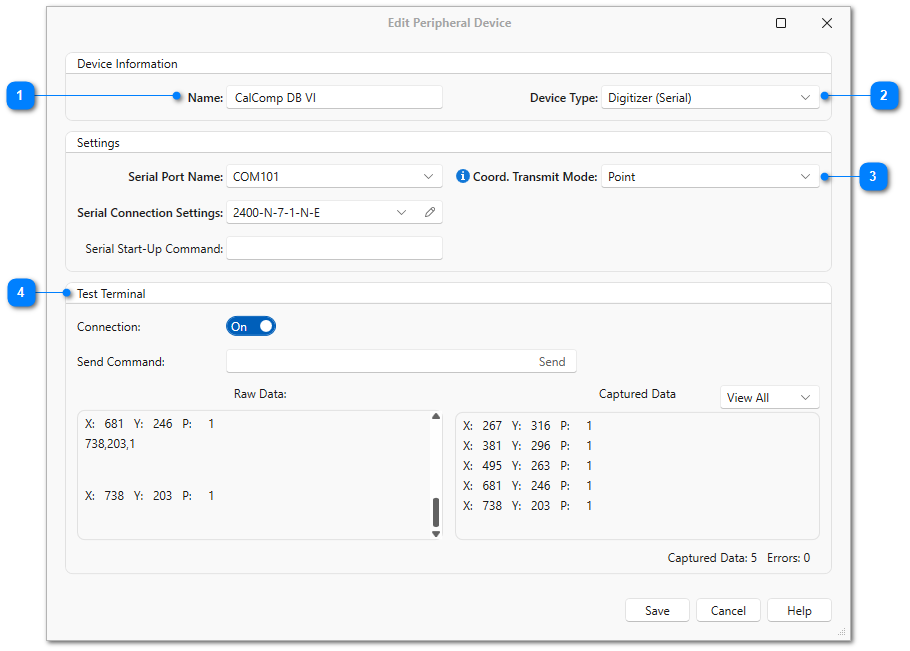
Select the type of connection the digitizer tablet will be using. P5 supports both serial and USB connections. When using a USB connection, you must install the WinTAB driver supplied by the tablet manufacturer: TabletWorks for CalComp boards or Wacom Center for Wacom boards. |

|
Coordinate Transmit Mode |
|
|
Specify the coordinate transmit mode as Point or Continuous. If coordinates stream continuously in the Raw Data terminal window when the digitizer pen is near or on the tablet surface, then select Continuous. If coordinates only appear in the Raw Data terminal window when the pen is clicked on tablet, select Point. |

|
Test Terminal |
|
|
To test that communication settings are correct for the tablet, slide the Connection switch to the On position, then click the digitizer pen anywhere on the surface of the tablet. If one X/Y coordinate appears in the Captured Data terminal window for each click, then it is configured correctly. |
