
|
Utilities |
|

|
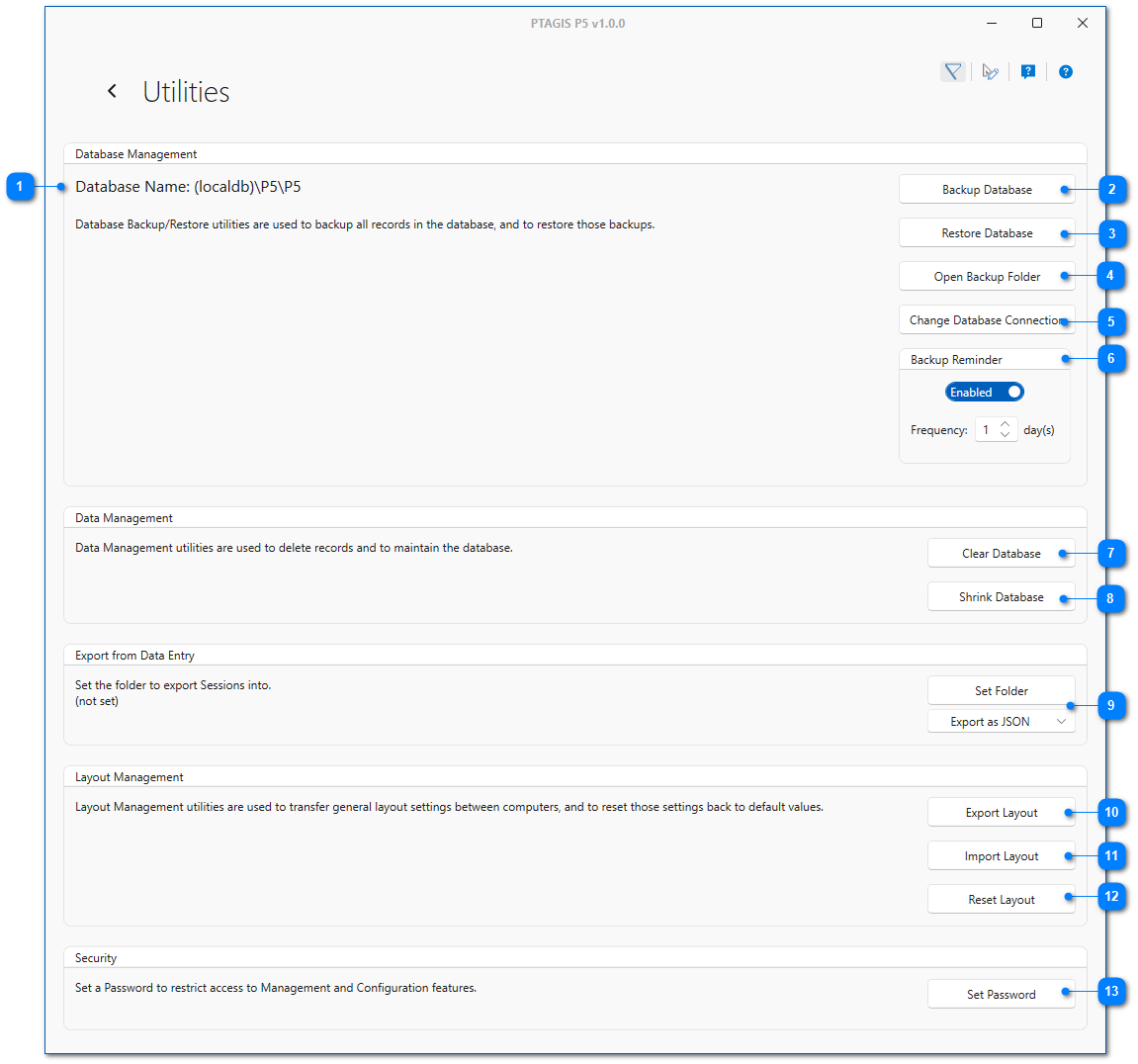
Backup Database |
|
|
Creates a backup of the currently connected local P5 database to a SQL Server backup file. Backup files are stored in C:\ProgramData\PTAGIS\P5\Backup and are named P5 vX.X.X DatabaseName Backup YYYY-MM-DD-HH-MM-SS.bak (e.g. P5 v1.5.0 Project_02 Backup 2026-08-05-16-03-22.bak) |

|
Restore Database |
|
|
Used to restore a P5 database backup file to the current installation of P5. The backup file version must be equal to or lower than the P5 version. If a backup from an earlier version of P5 is restored to a newer version of P5, the database will automatically by upgraded when it is restored. If a backup from newer version of P5 is restored to an older version, P5 will become inoperable. The name of the backup file includes the version of P5 from which it was backed up. New in version 1.6.0: A backup file can now be restored to a differently named database to support using multiple local database files for different projects. For example, you can restore a database backup to the name Project_01 and use the Change Database Connection button to change between the default P5 database and the Project_01 database. See Managing Local Database Connections for more information. |

|
Delete Database |
|
|
New in version 1.6.0. When connected to the default P5 database, this button can be used to delete local user-named databases. A backup of the database is made before it is deleted. The user and date of the database deletion is logged to the default P5 database. |

|
Open Backup Folder |
|
|
Opens the folder in which the P5 database backup files are stored, which is C:\ProgramData\PTAGIS\P5\Backup. Backup files must be located in this folder before they can be restored. |

Change Database Connection |
|
|
Used to change from a local database to a remote (central) database on a server and vice versa. You must know the name of the server on which the remote database is running and be able to connect to that server over the network. The version of the database must match the local version of P5. New in version 1.6.0: This button can also be used to change between local user-named databases. See Managing Local Database Connections for more information. |

|
Connection Accent Color |
|
|
New in Version 1.6.0. This setting can be used to change the accent color of the P5 application title bar for different user-named local databases to make it easier for the user to know which local database P5 is currently connected to. It defaults to transparent (no color) for the default P5 database. See Managing Local Database Connections for more information. |

Backup Reminder |
|
|
Used to enable reminders to backup the P5 database if the last backup occurred more days ago than the Frequency. The reminder will be triggered when P5 is closed and give the user the chance to backup the database at that time. |

|
Import P4 Database |
|
|
Used to import data and configuration tools from a P4 database on the same computer. NOTE: This tool requires that the existing P5 database be completely cleared of all data and configuration tools. |

|
Clear Database |
|
|
Used to delete all data and configuration tools in the P5 database. As a precaution, the database will be backed up before this command is run. |


|
Unlock Sessions |
|
|
Used to unlock a Session that has been left in a locked state. A Session is locked whenever it is opened in data entry, record management, or any tool that updates records. It may remain locked if the user logs off before closing it. Sessions are automatically unlocked when the original user logs back in and starts P5. However, the Unlock Sessions function allows another user to manually unlock a Session if the original user is unavailable. |

Set Export Folder and Format |
|
|
Used to set a default folder to which Sessions can be exported during data entry. New in P5 you can now choose to export to the native P5 file format (JSON) or to CSV. |

|
Export Layout |
|
|
Used to export layout settings, which include the theme, panel placement and column arrangement in Record Management, to a file for transfer to another computer. |


Set Password |
|
|
Used to set a password to restrict access to Management and Configuration features. In order for a user to enter any of the features in these categories the password will need to be entered. If a set password is forgotten, contact PTAGIS for help with resetting it. |
